
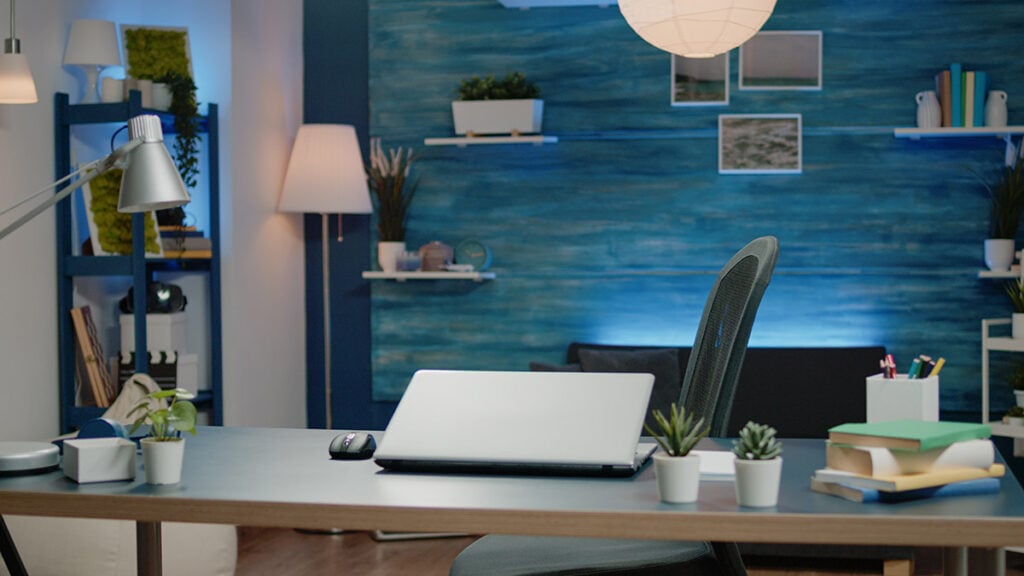
For home-based web designers meeting clients, the work can look polished while the room behind it looks thrown together. That mismatch creates a real tension in the client meeting environment: clients may question reliability, hesitate on pricing, or lose focus on the value of the design. A professional home office setup helps the conversation feel clear and confident in both virtual client meetings and in-person client meetings. When the space supports the message, trust comes faster.
Set Up a Client-Ready Home Office, Step by Step
This process helps you create a calm, credible space that supports your message on video calls and in-person meetings. Even if you are not “techy” or design-minded, these steps keep distractions down and make you look organized and dependable.
- Choose a clean, meeting-friendly layout
Start with where your desk will live and what the camera sees behind you. Face a simple background like a blank wall, bookshelf, or tidy storage, and keep the walkway clear in case a client visits. If possible, sit so windows are to your side, not directly behind you. - Lock in ergonomic comfort first
Choose a chair and comfortable home office desk height that let your shoulders relax and your elbows rest near a right angle. Small fixes matter, because remote workers often deal with aches when a home setup is thrown together. Comfort keeps your attention on the client, not your posture. - Dial in camera, lighting, and framing
Set your camera at eye level by raising your laptop or using a stand, then step back and check the full frame. Add a soft front light or lamp aimed toward your face so you do not look shadowy or tired. Do a quick test recording to confirm your eyes are visible and the background stays uncluttered. - Make your tech reliable and repeatable
Use the same “meeting kit” every time: charged laptop, power cable, headphones, and a backup hotspot option if you have one. Confirm your microphone and speakers in your meeting app settings, and keep key files in one easy-to-open folder. A consistent routine reduces last-minute scrambling and awkward pauses. - Reduce noise with simple sound control
Close doors, silence notifications, and move loud items like printers or fans away from the mic. Add soft materials such as a rug, curtains, or a fabric chair to cut echo, and place a towel at the door gap if sound leaks. Clear audio makes you seem more present and easier to work with.
Prevent Home Breakdowns From Derailing Client Work
If an electrical problem or a major home system issue hits right before a client call or an in-person review, the disruption can quickly ripple into missed deadlines and a less professional experience. Investing in home warranties can help protect your business by cushioning the cost and stress of unforeseen repairs that interrupt your ability to work. Home warranties are customizable annual service plans that cover repair or replacement of major home systems and appliances, with optional add-ons to help homeowners manage unexpected repair costs due to normal wear and tear. Once your continuity risks are covered, you can shift attention to the finishing touches that make your office feel intentionally designed for clients.
Upgrade Your Space With Designer-Specific Finishing Touches
Small finishing touches can make your home office feel intentionally “client-ready” without turning it into a showroom. These upgrades are especially helpful for web designers because they support smoother demos, cleaner visuals on camera, and fewer last-minute scrambles.
- Create a calm, professional decor “frame”: Pick one neutral backdrop zone behind you and keep it consistent, think of a simple shelf, one plant, and one piece of art in a cohesive palette. The goal is to look polished, not busy, so clients focus on your ideas instead of your stuff. A well-designed home office also helps you keep a clear boundary between work mode and home mode, which shows up as confidence on calls.
- Add subtle, real-world branding (not a logo wall): Use two to three brand cues you already use digitally, your accent color, a texture, or a type vibe, then translate them into the room with a notebook, desk mat, or framed print. Keep it understated so it reads as “intentional” rather than “salesy.” If you send client gifts, match the packaging to the same palette so the on-camera space and the off-camera experience feel aligned.
- Build a “meeting-ready” desk surface in 60 seconds: Limit what stays on the desktop to five essentials: laptop/monitor, notebook, pen, water, and a single catchall tray. Everything else gets a home in a drawer or bin so you can reset quickly before a call. This pairs well with the disruption-prevention mindset, when your setup is simple, it’s easier to do quick checks (battery levels, cable strain, loose connections) and avoid preventable hiccups.
- Organize design assets like a mini library (with a retrieval rule): Create one master folder called “Client Assets” with a consistent structure: 01_Admin, 02_Briefs, 03_Design, 04_Dev, 05_Deliverables, 06_Archive. Add a retrieval rule such as “find any file in under 30 seconds,” then label folders with dates and versions to make that possible. Systems that use a cross-reference structure can inspire how you tag and sort visual assets so you’re not hunting for the right hero image mid-call.
- Set up a client presentation “launch pad”: Keep a dedicated scene ready: one browser window with pinned tabs (agenda doc, staging site, analytics, notes), one full-screen timer, and a single folder with today’s files. Do a two-minute rehearsal before the meeting: share screen, switch tabs, open the prototype, and confirm audio. It’s the simplest way to reduce the odds that a minor tech wobble turns into an awkward pause.
- Create two camera-ready virtual background options: Build one “real” background (your tidy decor frame) and one digital fallback for messy days or privacy needs. Test both at the same time of day you meet clients, and adjust lighting so your face is evenly lit and your edges don’t blur. Keep the digital option simple, soft gradient or a lightly branded pattern, so compression artifacts don’t distract.
- Give cables, backups, and privacy a dedicated station: Mount a small power strip under the desk, label your key cables, and keep a spare charger plus a hotspot or tethering plan in one bin. Add a quick privacy move like a laptop privacy filter or a screen angle that prevents household sightlines. This supports the “business continuity” goal from your maintenance plan: fewer single points of failure, and faster recovery when something goes sideways.
Home Office Meeting Setup: Common Questions
Q: How do I balance privacy with being easy to reach during meetings?
A: Use “layers” of access: a clear meeting status on your calendar, a door sign or signal for household members, and notifications set to “priority only.” For clients, share one reliable contact path (email or chat) plus a single backup (text) for true emergencies. That keeps you accessible without inviting constant interruptions.
Q: What should I do if my audio or screen share breaks mid-call?
A: Say what’s happening, give a 10-second fix attempt, then switch to a fallback plan. Keep a second device ready to join audio, and have your key links in one message you can paste quickly. A calm, practiced recovery reads as professionalism.
Q: How can I protect client data if I use AI tools or copy notes around?
A: Follow the Zero-PII Principle by removing names, emails, addresses, and any identifying details before pasting text anywhere. Store sensitive files in a single, access-controlled location, and lock your screen whenever you step away.
Q: Should I spend money on upgrades, or is this mostly about habits?
A: Habits come first, but targeted upgrades can remove friction that clients notice. A realistic budget between $800-$7,000 helps you decide what’s “nice” versus truly meeting-critical. Prioritize lighting, mic quality, and backup internet before decor.
Q: Can I keep my workspace at home without showing my home on camera?
A: Yes, and you don’t need a perfect room to look professional. Angle your camera toward a plain wall, use a tidy corner, or choose a simple virtual background that does not blur your outline. The goal is fewer visual distractions and more focus on the conversation.
Build a Client-Ready Home Office One Upgrade at a Time
Client meetings from home can feel like a tightrope: staying comfortable while proving reliability, privacy, and polish on camera. The steadier path is a simple mindset, focus on executing home office setup with consistency, then sustaining a professional environment through small checks and repeatable client impression strategies. When those basics are in place, meetings run smoother, confidence rises, and home office productivity stops depending on luck. A professional home office is built through small, consistent choices, not one big overhaul.
Author of this article is Cody McBride, Tech Deck.